The inputs above will be hidden when the program finally gets launched. Currently, I am not hiding them even when you close the calculator. The purpose of the inputs is to help in debugging. This allows you to enter simple code on the calculator screen but the program translates the input to javascript math. Give it a try and see if you notice any obvious problems or have suggestions for improvements.
The javascript math object methods used for this calculator are not accurate for very large or very small numbers. In particular, the trigonometric functions may yield very small answers that should actually be zero or very large answers that should be infinite. This typically occurs at 90° or pi/2 intervals.
DO NOT USE WHERE HIGH PRECISION IS REQUIRED. USE AT YOUR OWN RISK.
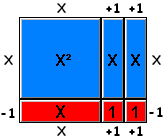
These algebra tile toolkit components can be clicked, dragged and dropped to the workspace to form a rectangle. Blue X² tiles are X by X, blue X tiles are 1 by X, red X tiles are -1 by X, blue unit tiles are 1 by 1 and red unit tiles are -1 by 1; resulting in areas of X², X, -X, 1 and -1, respectively.
For each "New Problem" pick the appropriate number and color algebra tiles and arrange them to form a rectangle. The X tiles all need to be the same color from left-to-right; likewise from top-to-bottom. In the example below all the X tiles going from left-to-right are blue, top-to-bottom they are red. The unit tiles will be red if one of the X tiles is blue and the other is red. Look at the dimensions shown next to the tile.
Once you have formed the perfect rectangle, you should be able to type in the factors. Recognize that when adding areas, each red tile would offset each blue tile and visa versa. Note in the example below that the total dimension left-to-right is X + 2 units long while the top-to-bottom dimension is X - 1 units long.